
Here I will note two tricks I needed several time and loosed also several times. So, in order to not surch them again, I put them here.
Progress bars
I sometimes compress some large files and I want to get a progress bar in my terminal to know how it progressed.
The easier way is the use the pv (Pipe Viewer) command which account the data which traverse it and display progress.
Install
It is available on most distributions :
1
2
3
4
# Gentoo
sudo emerga -a pv
# Debian
sudo apt install pv
Usage
It can be interposed between the reader (cat) and the compresser or can simply used in place of cat itself so it automatically knowns the size of the file to read to compute the progression.
1
2
3
4
5
6
7
# via pipe
file_size=$(ls -l my_big_file | awk '{print $5}')
cat my_big_file | pv --size ${file_size} --progress --eta --rate --bytes | pbzip2 > my_big_file.zip
# direct
pv --progress --eta --rate --bytes my_big_file | pbzip2 > my_big_file.zip
# direct (short options)
pv -perb my_big_file | pbzip2 > my_big_file.zip
You will get in the terminal :
166MiO [28,9MiO/s] [===========> ] 23% ETA 0:00:16
The official manual is here : man pv.
Advanced usage
If you want the bandwidth in & out (after compression) you can play with some tricks so you can follow that way as many stage you want :
1
2
3
pv -perb -cN 'cat' my_big_file \
	| pbzip2 \
	| pv -cN 'pbzip2' > my_big_file.zip
So you you:
   pbzip2:  684MiO 0:00:24 [27,4MiO/s] [                   <=>                      ]
      cat:  704MiO [28,6MiO/s] [===================================================>] 100%
Finding the big files & directories
When the disk is full you need to find what to remove. There is some nice graphical tools like filelight or simular. But it can be very conveniant to have something directly in the shell.
Of course someone made it, it is : ncdu (NCurses Disk Usage).
Installation
It is of course available on most distributions:
1
2
3
4
# Gentoo
sudo emerge -a ncdu
# Debian
sudo apt install ncdu
Usage
Simply be used as :
1
ncdu .
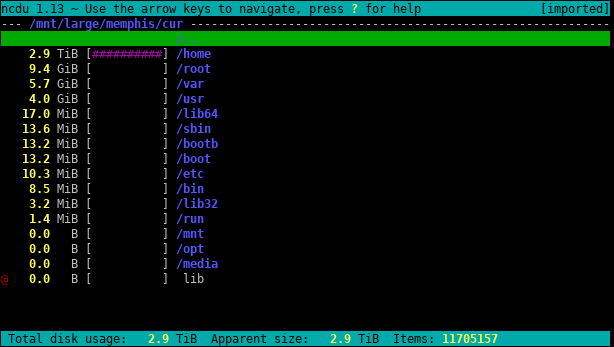
You will immediatly get a Curses view in which you can navigate with your keyboard :
Delete
You can delete the selected item by using the key d.